
Widget on Your Own Website
One <script> tag on a page you control. No
build step, no framework, no npm.
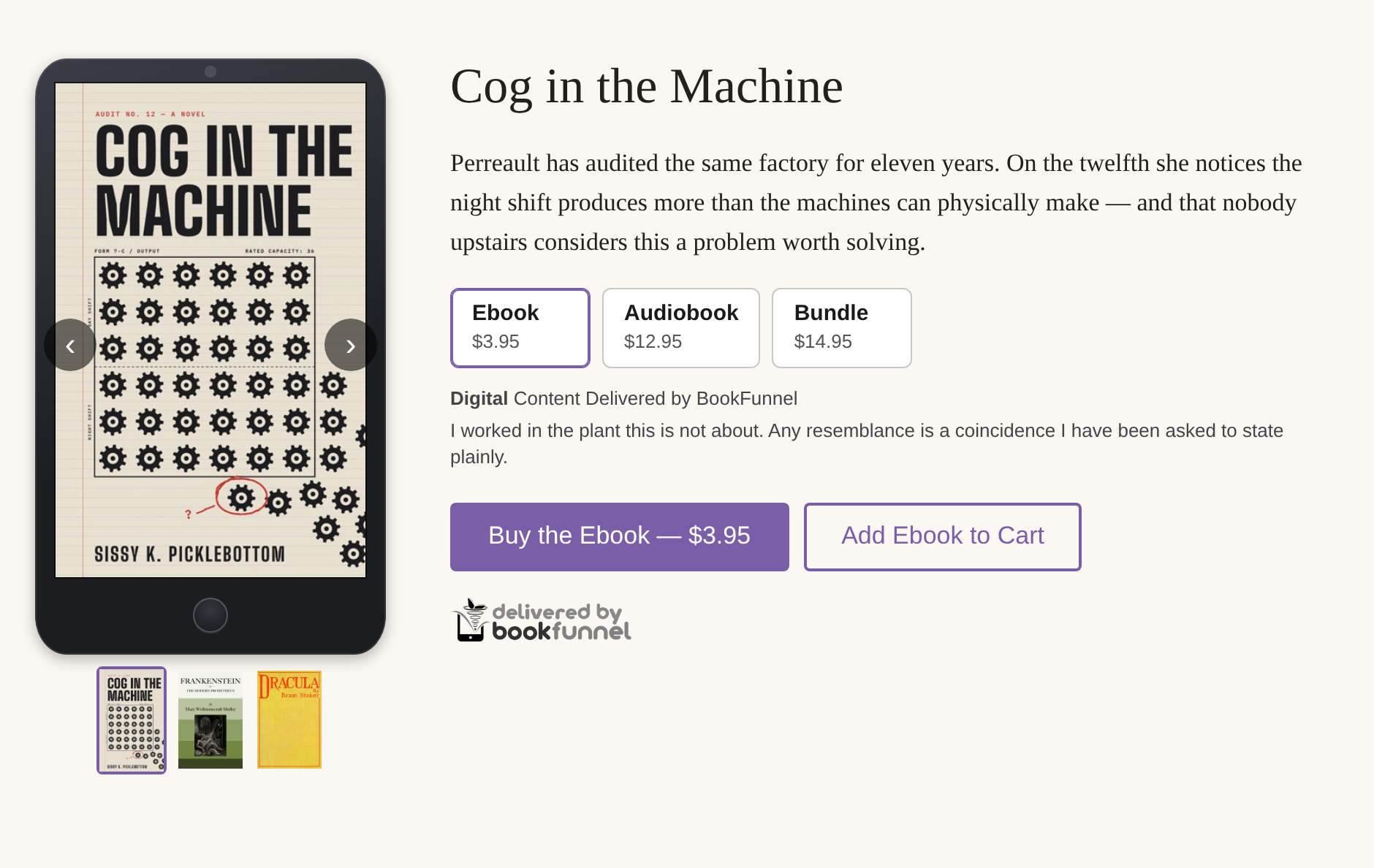
The Widget Builder
The easiest way to get the tag is to let BookFunnel write it. In your dashboard, open Sell with BookFunnel, then Widget Builder in the Action menu. Choose the product and how the buttons should look, and copy the tag it writes. Paste it into your page where the buttons should go.
Give the widget a name and Save it to keep it. Saved widgets appear on the Sales Channels tab in BookFunnel, where you can copy, view, edit or archive them.
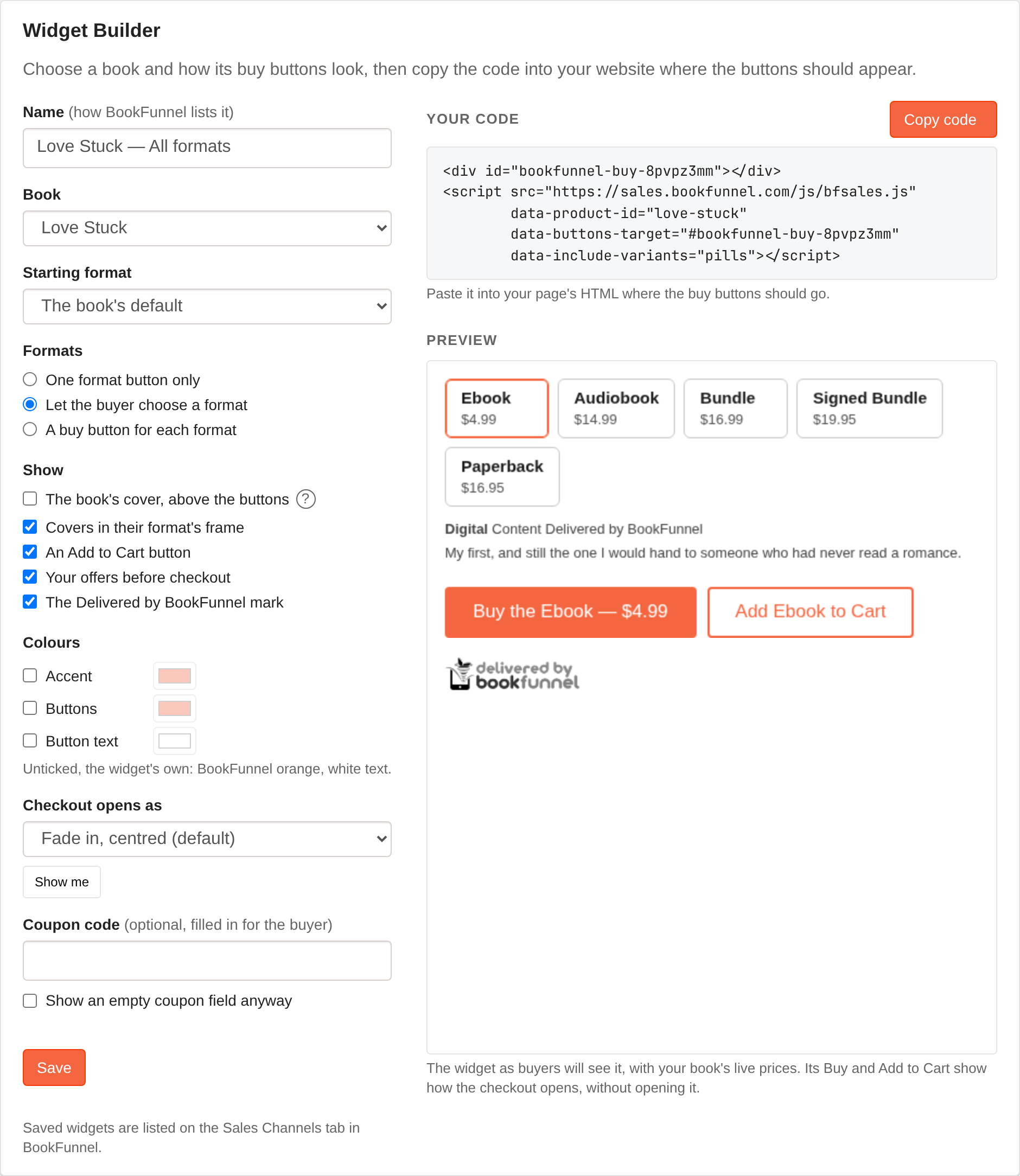
The rest of this page is for anyone who would rather write the tag by hand, or wants to know what each part does.
Quick start
Put an empty element where the buttons should go, and the script tag anywhere after it.
<div id="buy"></div>

<script src="https://staswbf.bookfunnel.com/js/bfsales.js"
        data-product-id="YOUR-PRODUCT-ID"
        data-buttons-target="#buy"></script>
That renders a "Buy now" and an "Add to Cart" button into #buy,
along with the delivered-by-BookFunnel mark. Drop the cart with
data-cart="off" if you sell one book at a time.
Leave out data-buttons-target and the buttons appear wherever
the script tag itself sits — then the tag really is the only thing you add.
Using your own button
Name it with data-checkout-trigger and the widget renders none
of its own — it binds to yours.
<button id="buy">Buy the book</button>

<script src="https://staswbf.bookfunnel.com/js/bfsales.js"
        data-product-id="YOUR-PRODUCT-ID"
        data-checkout-trigger="#buy"></script>
Add data-cart-trigger for your own Add-to-Cart button.
Configuration
All of it is data-* attributes on the script tag.
| Attribute | What it does |
|---|---|
data-product-id required | The product to sell. |
data-buttons-target | Where the buttons render. Omit and they appear beside the script tag. |
data-buttons | none renders no buttons at all; nothing opens until your code calls window.bfsales.open(). |
data-cart | off drops Add to Cart, leaving one buy button. |
data-checkout-trigger | Selector for your own button. Suppresses ours. |
data-cart-trigger | Selector for your own Add to Cart button. |
data-modal-style | How the cart panel appears. Default appear-center — see below. |
data-accent-color | Your brand colour, for focus rings and links. Default #f4663f. |
data-coupon | A coupon code to prefill. |
data-show-coupon | Render the coupon field even when empty. |
data-api-base | Where the checkout is: https://staswbf.bookfunnel.com. Needed only when the script is loaded from another address; the tags on this page include it when it is. |
data-badge | off hides the "Delivered by BookFunnel" mark under this tag's buttons. The mark is drawn once per page whatever you set: with several widgets it sits under the first that BookFunnel delivers, and if you have placed the mark yourself no widget draws it. |
How the checkout appears
The buttons and the cart stay on your page. When a reader presses Buy or Checkout, they go to BookFunnel's secure checkout page to pay, the way Shop Pay and Link work. Paying on BookFunnel's own page is what lets a browser remember a reader who saved their details, from one author's site to the next. Your page never sees the address or the card.
The cart panel opens over your page. data-modal-style takes one of:
appear-center— fade and scale in at the centre. The default.slide-from-right,slide-from-left,slide-from-top,slide-from-bottom— slide in from an edge and settle in the centre.slide-right,slide-left,slide-top,slide-bottom— an edge-docked drawer.slide-inline-right— not an overlay at all: docks a panel to the right and reflows your page. Needsdata-inline-target.
See them all on the examples page, which runs the real widget rather than showing pictures of it.
After the purchase
Once paid, the reader comes back to your site: to the page they pressed Buy on, or to the return page you set in Settings, under After Checkout. Your page shows the thank-you and the link to the book, as long as it carries this script tag. Without the tag the reader sees your page as it is. The receipt e-mail goes out either way, and the reader can see their orders at https://staswbf.bookfunnel.com/myorders.
The widget also raises a bfsales:purchase event, once per order,
with the order number, the amount and the currency. Your ad pixel can report
it as a sale. For a Meta Pixel already on the page:
<script>
  window.addEventListener('bfsales:purchase', function (e) {
    fbq('track', 'Purchase', { value: e.detail.value, currency: e.detail.currency });
  });
</script>
Campaign tags on the page the reader first landed on (utm_source,
utm_medium, utm_campaign, utm_content,
utm_term, and Meta's, Google's, TikTok's and Microsoft's click
ids) are remembered for seven days. They travel with the order and show in
your Orders tab and its export. Your own scripts never run on the checkout page.
Where the card details go
Straight from the reader's browser to the payment processor, on BookFunnel's checkout page. The card fields are hosted by the processor, not by us and not by you — which is why adding this to your site does not put you inside the scope of card-data handling.
Two things that catch people out
- Your site must be allowed. If you list any sites in
Settings, under Allowed Websites for
Sales, a site that is not on the list gets "This site isn't
authorized to sell this book". Adding
www.counts as a different site. - The element has to exist when the script runs. The widget binds to what it finds; a button your theme injects later is not picked up.